PotoP Enterprise Suite

One business suite for planning, field work, people and finance

Planning, field service, projects, engineering, people, payroll, purchasing, invoicing and bookkeeping in one web application — for any company with work to plan and people to send. It stands on its own; add PotoP VMS Studio and camera faults and system designs flow in by themselves.

Made in the EU Runs on your own servers

Planning board with drag and drop

Planning board

Drag and drop jobs, crews and multi-day work; everyone sees their own schedule.

Field service & faults

Work orders, service calls with SLA clocks, dispatch and a live map of the team.

Engineering

A visual system designer, reusable building blocks, packages and certificate tracking.

People, hours & payroll

Leave, sickness, timesheets against the roster and payroll runs from approved hours.

Sales, purchasing & books

Invoices, purchase approval, bank payments and double-entry bookkeeping with reports.

Private by design

End-to-end encrypted chat, a password vault, passkeys and a local AI assistant.

Your whole company in one place

PotoP Enterprise Suite (PES) is a web application for companies that plan work, send people out and invoice for it. The planner drags work onto a board, people see their jobs on the phone, service calls arrive with an SLA clock, and the hours that are booked flow into payroll and invoices without being typed twice. Finance works in the same data with double-entry books, VAT and bank payments.

Made for any company with people on the move

  • Installation, maintenance and service companies
  • Contractors and technical trades
  • Facility management and field-service teams
  • Security and fire-safety integrators

Every module is licensed on its own, so a company switches on what it uses — just planning and hours, or the whole suite up to the books.

Secure and private

Chat is end-to-end encrypted, passwords live in a zero-knowledge vault, sign-in works with passkeys, and a local AI assistant answers questions about your own data without sending it anywhere. It all runs on your own server.

Even better with PotoP VMS Studio

PES works for any company on its own. When you also install or run camera systems with PotoP VMS Studio, the two talk to each other and a lot of manual work disappears.

PotoP VMS Studio

Faults become service calls

A camera that fails on a customer's VMS server arrives in PES as a service call on the right customer, site and camera — with the operator's name and phone number — and the operator sees that it was picked up.

Design once, program the server

What the engineer draws in the PES designer — cameras, logins, recording modes, AI analysis, schedules, workstation layouts and camera groups — is programmed into the VMS server in one step.

Read an installation back

An existing VMS server can be read back into a drawing, so the documentation always matches what is really installed.

Faster engineering and service

No retyping of camera lists, no morning phone calls about black screens: planning, engineering and service start from the same data.

Feature tour

Every screen below is a real screenshot. Search for a feature or pick a chapter; click a picture to see it full size and page through them with the arrow keys.

01

Projects & planning 3 screens

Plan people, crews and multi-day jobs on one board; everyone sees their own week.

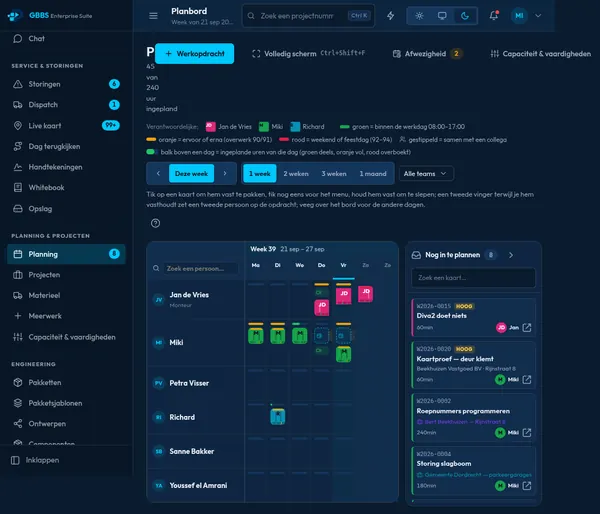
Planning board with drag and drop
Highlight PES web app

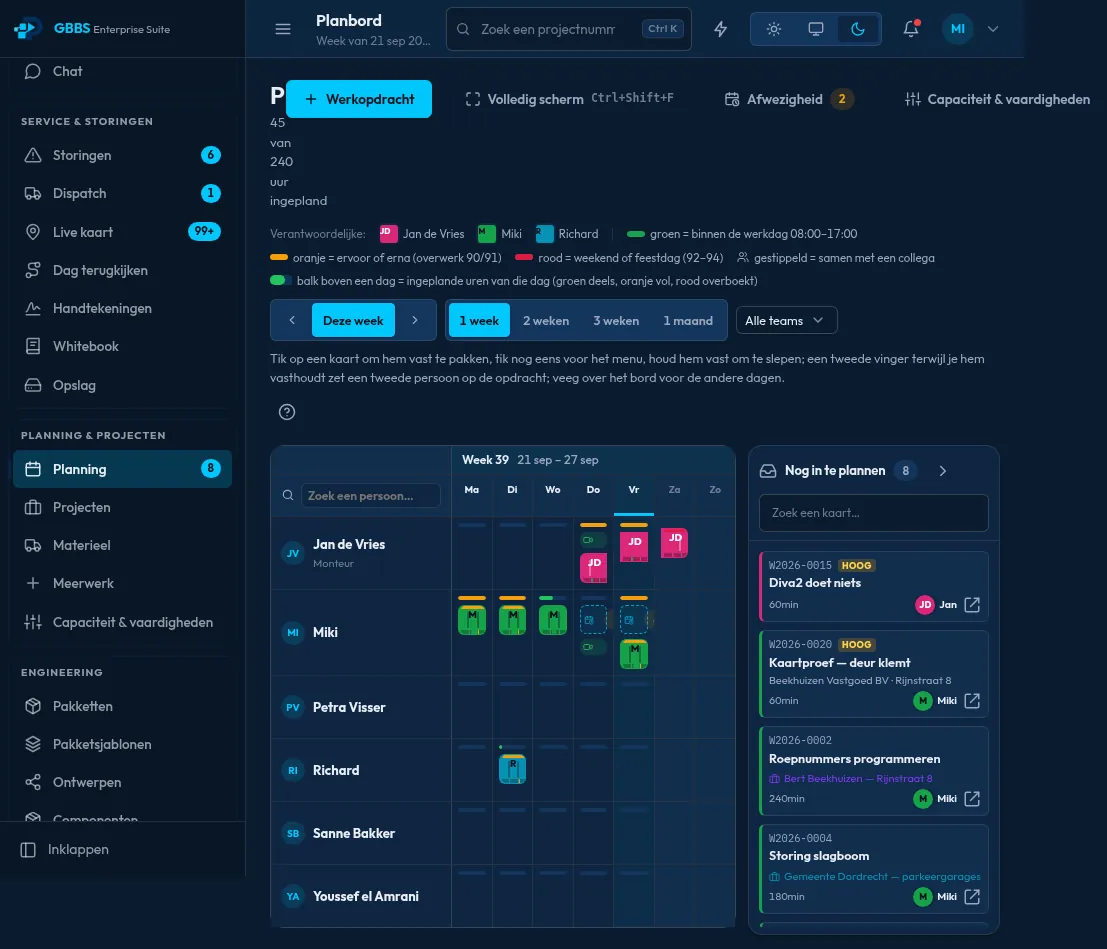
Planning board with drag and drop

Planners see every technician across the week and place work orders by dragging cards onto a day. Colour bars show planned hours against the working day, and an unplanned queue sits beside the board.

How it works

The board does not keep its own copy of the work. A card is a job from the same table that dispatch and the technician's phone use, and dropping it on a day writes the new date and assignee to that row through the browser. The colour bars are computed on the server from planned hours, the person's working day and recorded absence, so the load figure and the job list cannot disagree. Touch screens can drag as well, and the unplanned queue is simply the set of jobs that have no date yet.

Each person's own schedule
PES web app

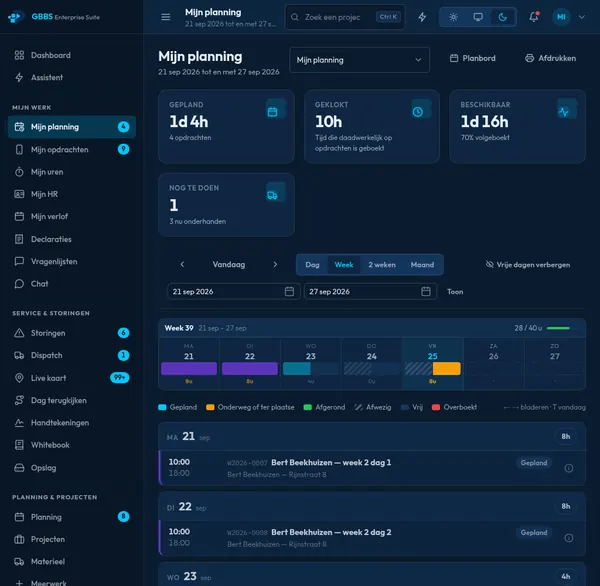
Each person's own schedule

Technicians see their week with hours planned, hours clocked and time still available. Every job shows its time, address and status, and the schedule can be added to a personal calendar app.

How it works

The schedule is a view over the same job and absence records the planning board uses, grouped by day, with planned hours added up beside the hours the person has clocked. Nothing extra is stored for it. The calendar link is a private, revocable address that serves a standard iCalendar feed, so Outlook, Google Calendar or a phone calendar can subscribe and refresh it themselves. The address contains a secret token and can be switched off at any time, which stops the feed immediately.
Project overview with hours
PES web app

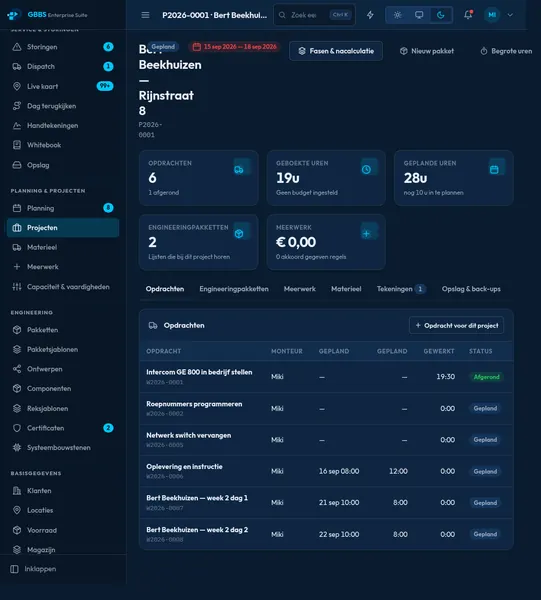
Project overview with hours

A project page brings its work orders, booked and planned hours, engineering packages and extra work together. Tabs lead to materials, drawings and storage for the same project.

How it works

A project is the record that groups jobs, with a customer and a budget. The page adds up booked hours from approved timesheets and planned hours from the planning board, both read from PostgreSQL when the page is opened, so the totals always match the underlying entries. Engineering packages, extra work and materials attach to the project through ordinary database relations, and each tab is a separate server-rendered view that appears only if the company has licensed that module and the user has permission to see it.

02

Field service & faults 5 screens

Faults arrive with an SLA clock, become work orders and are followed on the live map until they are solved.

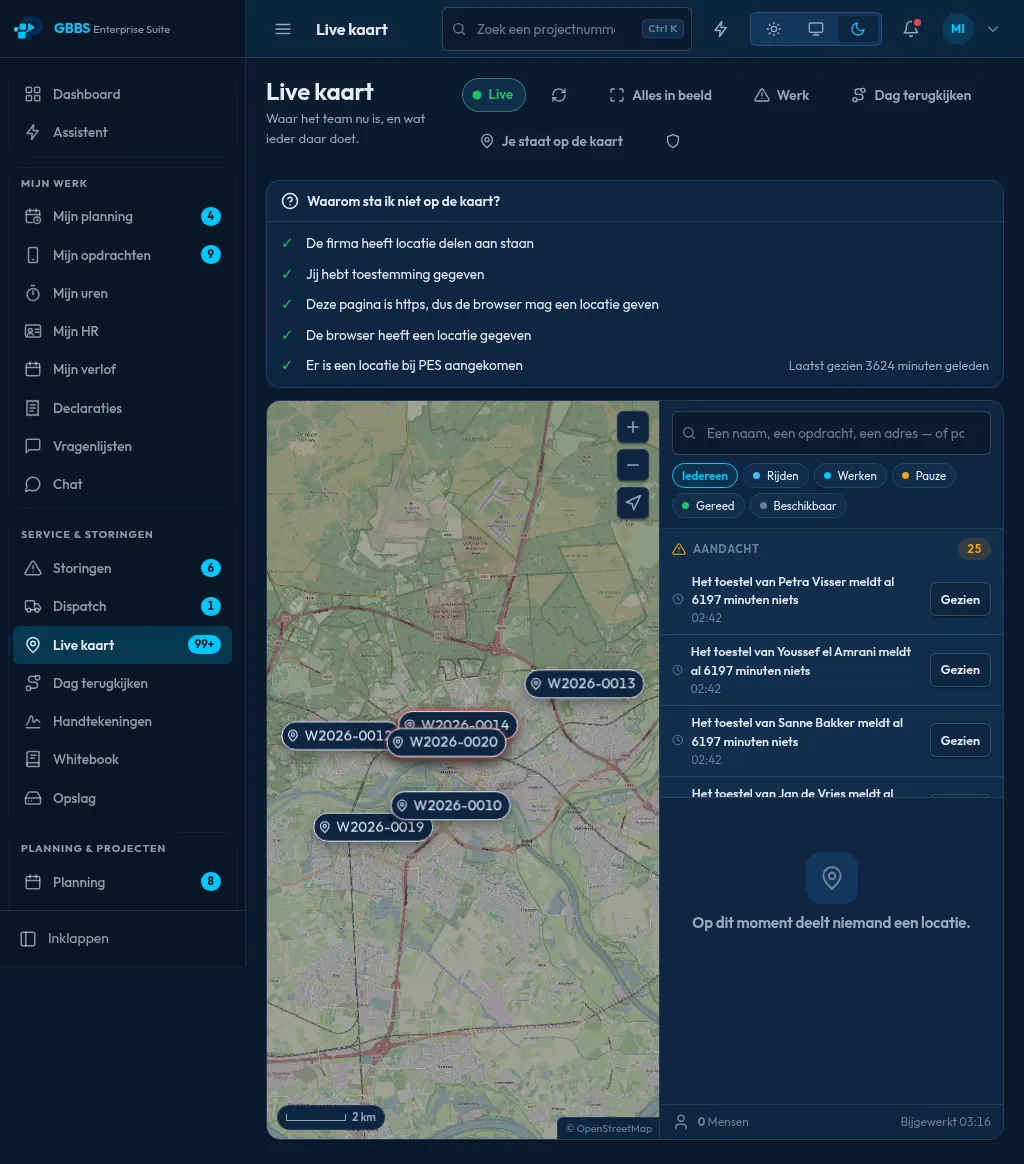
Live map of the field team
Highlight PES web app

Live map of the field team

Dispatchers see where the team is and which work orders sit where, with filters for driving, working and available. An attention list flags devices that have gone quiet.

How it works

Positions come from the technician's own browser or phone, which sends a location fix together with the status the person chose, such as driving or working. Nothing is shown for anyone who has not given consent, and the company must have location sharing switched on. The map is drawn in the browser on OpenStreetMap tiles by default, and a company can point it at its own tile server for offline networks. The attention list is computed on the server from how long each device has been silent, and old position trails delete themselves.

Job list for the technician
PES web app

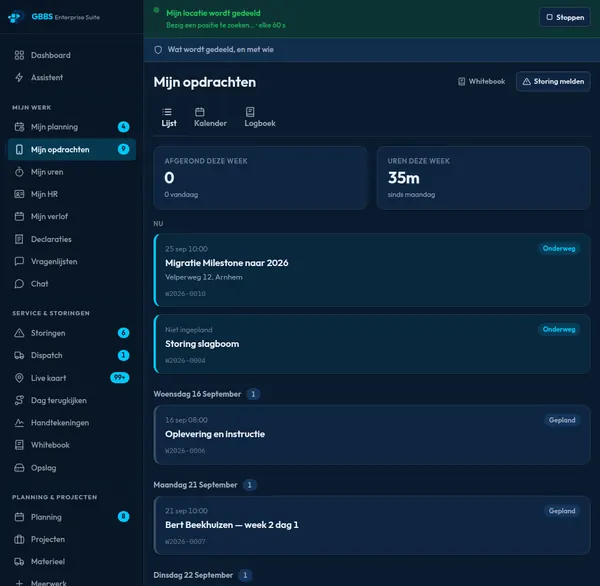
Job list for the technician

The My jobs view lists current and upcoming jobs with status, address and work order number. Technicians can share their location while working and report a fault from the same screen.

How it works

The list is the technician's own view of the shared job table: jobs assigned to that person, grouped by day, with the status they move through as they work. Sharing location is a switch the technician controls, and the banner shows the browser is sending a position at a fixed interval while the switch is on. Reporting a fault opens the same fault form the office uses, so the report lands directly in the fault queue. The page is responsive and is the same one the Android app shows.

Fault handling with SLA clocks
PES web app

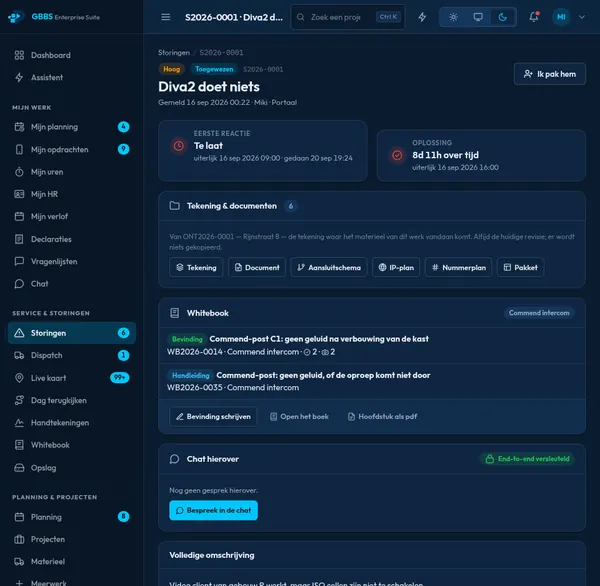
Fault handling with SLA clocks

A fault shows its first-response and resolution deadlines, related drawings, whitebook entries and an encrypted chat. Visits, updates and history are kept together so the next person sees the full story.

How it works

Each fault is matched to a service-level policy for its priority, and the first-response and resolution deadlines are calculated from it on the server and stored with the fault. Drawings and whitebook entries are linked through the installation the fault belongs to. The chat on the fault is the same end-to-end encrypted messenger used elsewhere: encryption and decryption happen in the browser, and the server only holds ciphertext. Every visit, status change and update is written to the fault's history with the person's name and time.

Work order with full context
PES web app

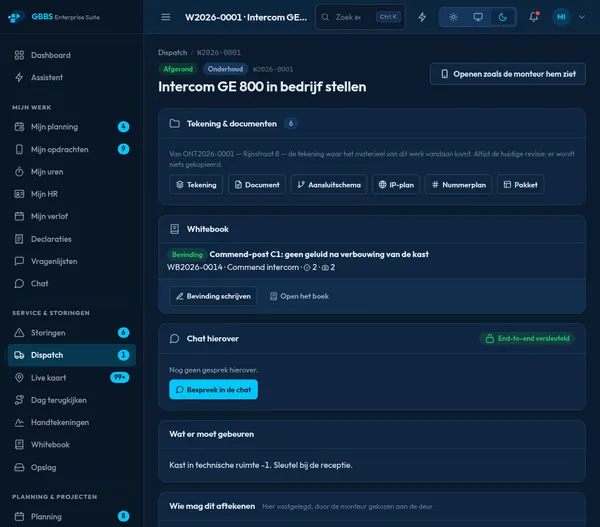
Work order with full context

A work order holds the drawing, documents, on-site instructions, history and the assigned technician. Skills, materials and travel time are recorded on the same page.

How it works

A work order is one job record with relations to everything around it. The drawing and documents are links to the installation and its stored files, the instructions are text the office wrote for the site, and the history is an audit trail of who changed what and when. Technicians record time as segments that are marked either as clocked with a button or typed in afterwards, so a correction is visible instead of silently rewriting what the phone recorded. Materials booked here reduce stock and appear on the project.

Whitebook: fixes worth keeping
PES web app

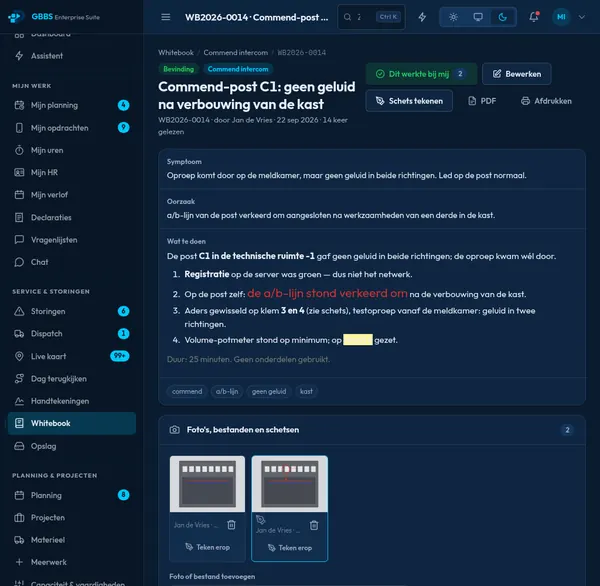
Whitebook: fixes worth keeping

Solved faults are written up as symptom, cause and steps, with photos and sketches. Colleagues add notes, and the entry links back to the installation and the people who know the system.

How it works

An entry is filed under a system type, in the same vocabulary the engineering drawings use, so the same entry appears for every installation of that system. Photos are taken with the phone or browser camera, and simple sketches are drawn with a finger on a canvas and stored as images next to the text. Read, edit and add-a-note rights are separate permissions. Entries can be printed as a PDF, and the link to the people who know the system comes from the skills ratings kept in the people module.

03

Engineering 3 screens

Design the system visually, reuse building blocks and keep certificates and documents with the project.

Visual system designer
Highlight PES web app

Visual system designer

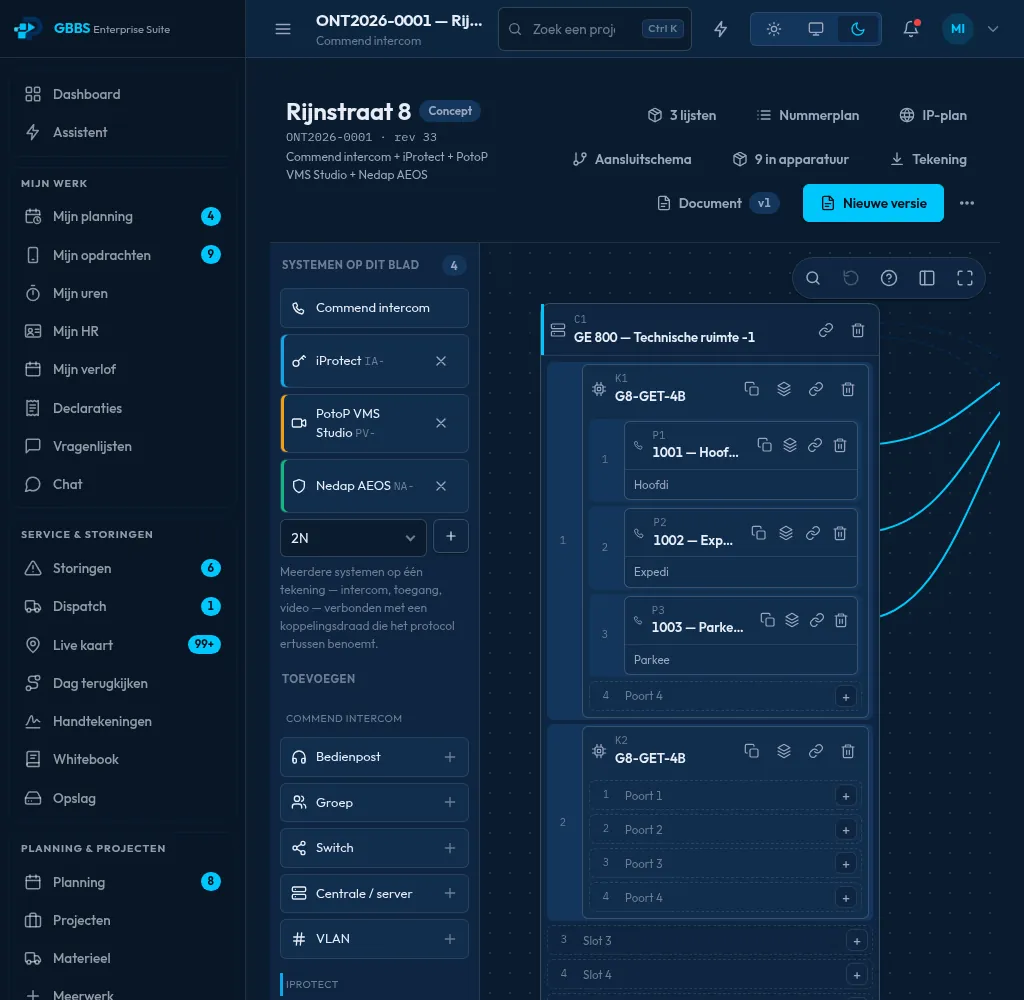
Installations are drawn as racks, cards, ports and numbered lines, with parts added from a palette per system. Checks at the bottom flag empty addresses and missing licences before anything is handed over.

How it works

The designer contains no built-in knowledge of any one product. Each manufacturer's system is described as data: which kinds of parts exist, which slots and ports they have, how they may connect and what a valid address looks like. The editor draws whatever that description defines, and the checks at the bottom are rules read from the same description, run over the drawing. The result is stored in the database, and the engineering document, address lists and, for a PotoP VMS Studio drawing, the server configuration are generated from the drawing.

Building blocks per system
PES web app

Building blocks per system

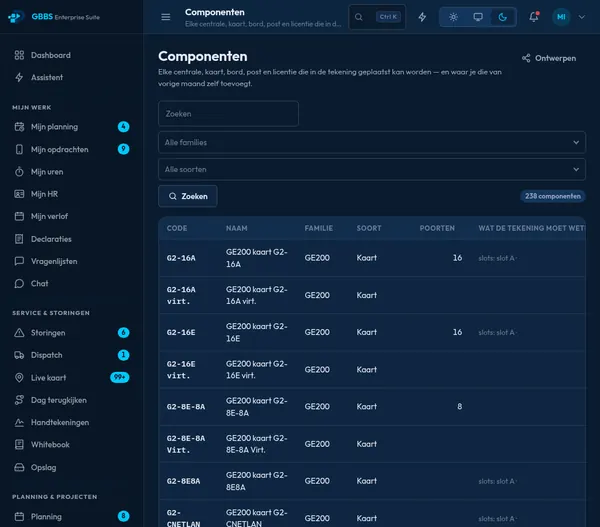
A library of supported systems covers intercom, access control, intrusion, fire and video, including PotoP VMS Studio. Each card shows what the system contains and how many part types, connections and tables it brings.

How it works

Each card is one system description stored as data: its part types, the connections allowed between them and the tables of numbers and addresses the engineering document needs. Because the editor is generic, adding support for another manufacturer means adding a new description rather than new code. The counts on the cards are taken from those descriptions when the page loads. The PotoP VMS Studio entry is one of these descriptions, which is what lets a drawing be turned into a working camera and recording setup on a VMS server.

Certificate expiry tracking
PES web app

Certificate expiry tracking

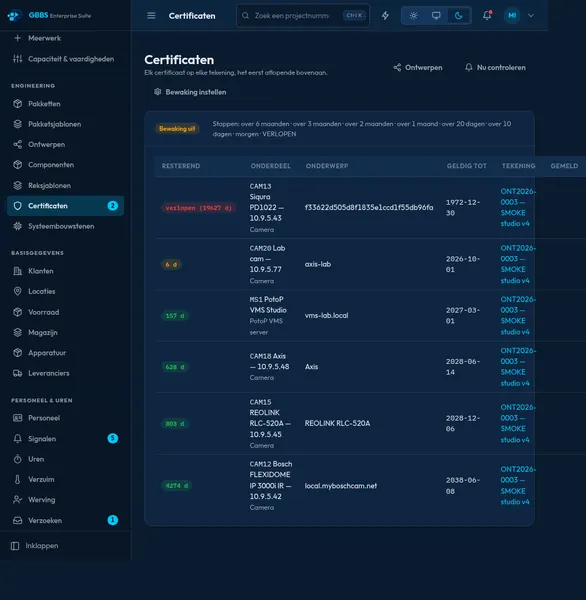
Every certificate across all drawings is listed with the remaining days, soonest first. Expired and nearly expired ones stand out, so renewals are planned rather than discovered.

How it works

Any part on any drawing can carry a certificate end date, and this page collects all of them across the company with one query, sorted by remaining days. A background job checks the dates every day and sends warnings at six, three, two and one month, then at twenty, ten and one day before the end, and once after expiry. Warnings go by e-mail, Telegram and inside the suite to people who may edit drawings. Each warning step is recorded on the item itself, so a restart or a second run never repeats it.

04

People, hours & payroll 3 screens

From contract to payslip: rosters, timesheets, leave, sickness and payroll runs from approved hours.

Team and contract overview
Highlight PES web app

Team and contract overview

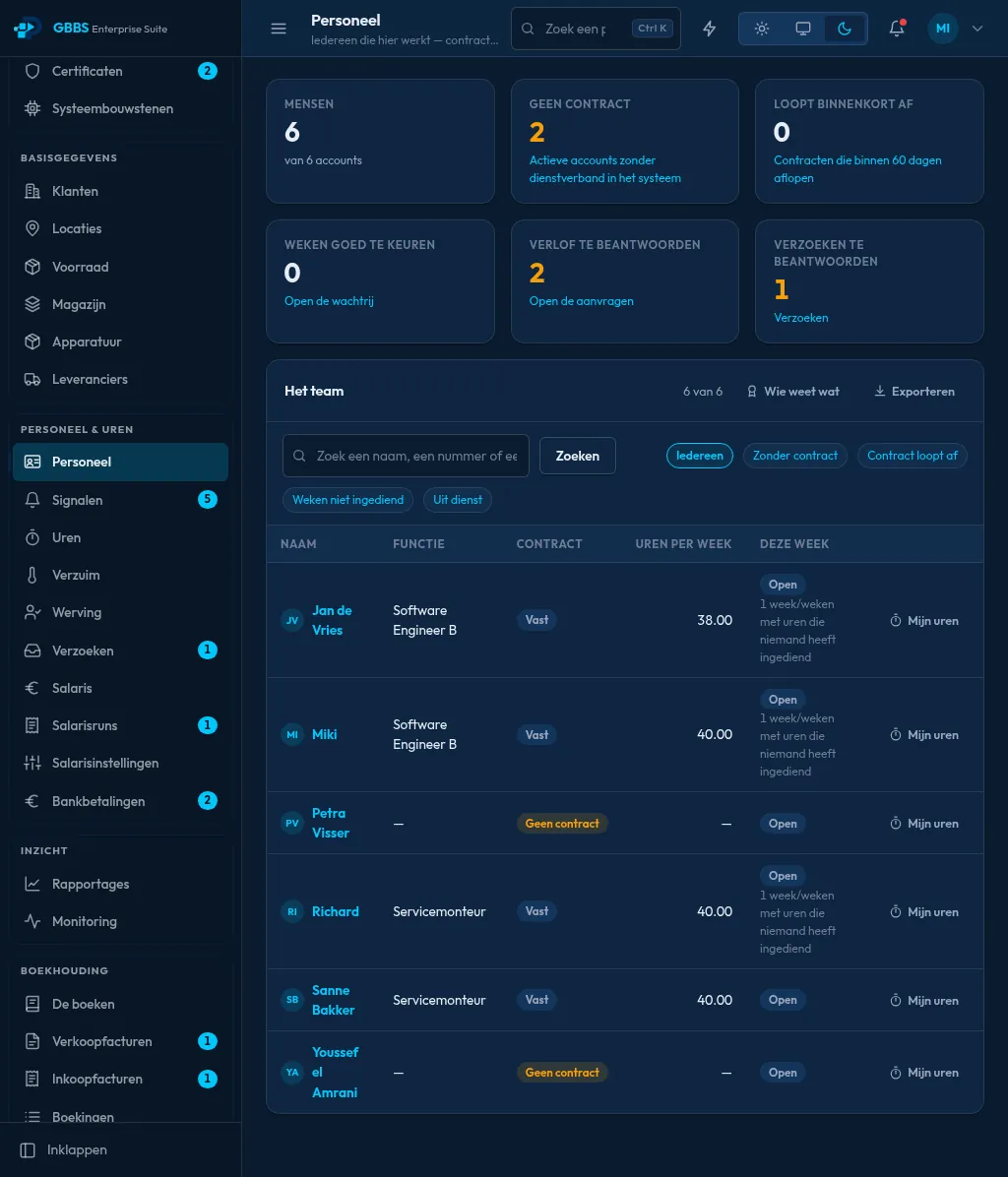
Headcount, missing contracts, leave requests and unsubmitted weeks appear as counters above the team list. Each person shows function, contract type and weekly hours.

How it works

The counters are live database counts over the people, contract, leave and timesheet records. A contract is stored as a period rather than an editable row: a change creates a new period and the old one stays, so what someone was contracted to do in an earlier year remains a fact. Weekly hours, contract type and function come from the current period. The module is one place for hours, contracts and leave, because a question like how a person's week went needs all three to answer. Access is limited by permission.

Payroll runs from approved hours
PES web app

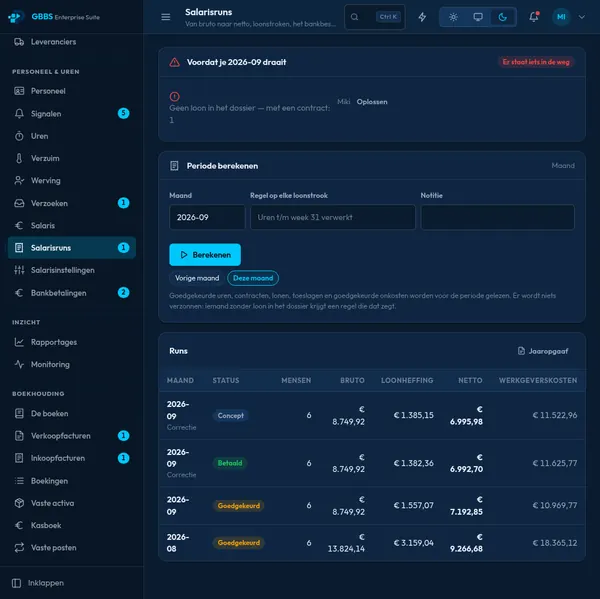
Payroll runs from approved hours

A payroll run calculates gross, tax and net pay for the period from approved hours, contracts and expenses. A pre-check names anyone who is missing a salary record before the run starts.

How it works

A run is calculated on the server from records already in the product: the contract, the effective-dated wage, hours that a manager approved split by the company's own hour codes and factors, leave and sickness percentages, and approved expenses. Gross, tax and net pay follow from those, and the pre-check lists people with no salary record before anything is calculated. Payslips are produced as PDFs, and the payment batch can be exported as a SEPA file or handed to a bank's payment API, where a person still authorises it at the bank.

Weekly timesheets against roster
PES web app

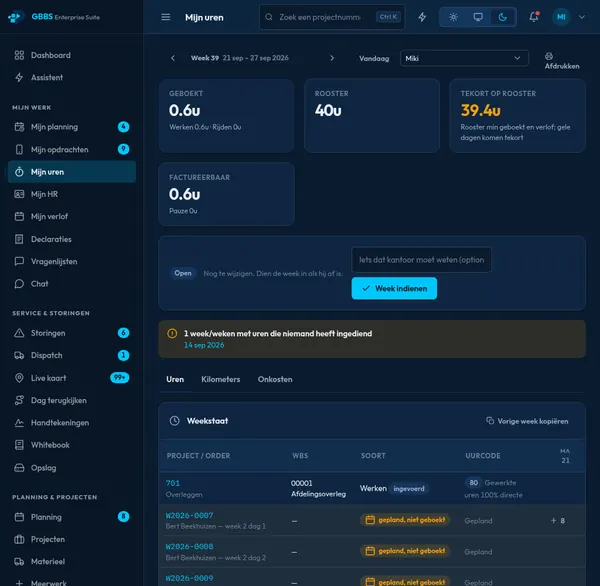
Weekly timesheets against roster

Hours are entered per project or work order and compared with the roster. Planned but unbooked work is highlighted, and the week is submitted for approval in one step.

How it works

Hours are entered against a project or a work order and stored as time segments in the database. The page compares them with the planned jobs and roster for the same week, so planned but unbooked work is marked. Submitting the week locks it for review by a manager, and only approved weeks flow on to payroll and to the hours totals on projects. Segments record whether they were clocked with a button or typed in afterwards, which keeps corrections visible and attributable to a named person.

05

Sales, purchasing & books 4 screens

Invoices out, invoices in, payment batches and double-entry books that keep themselves up to date.

Sales invoices and reminders
Highlight PES web app

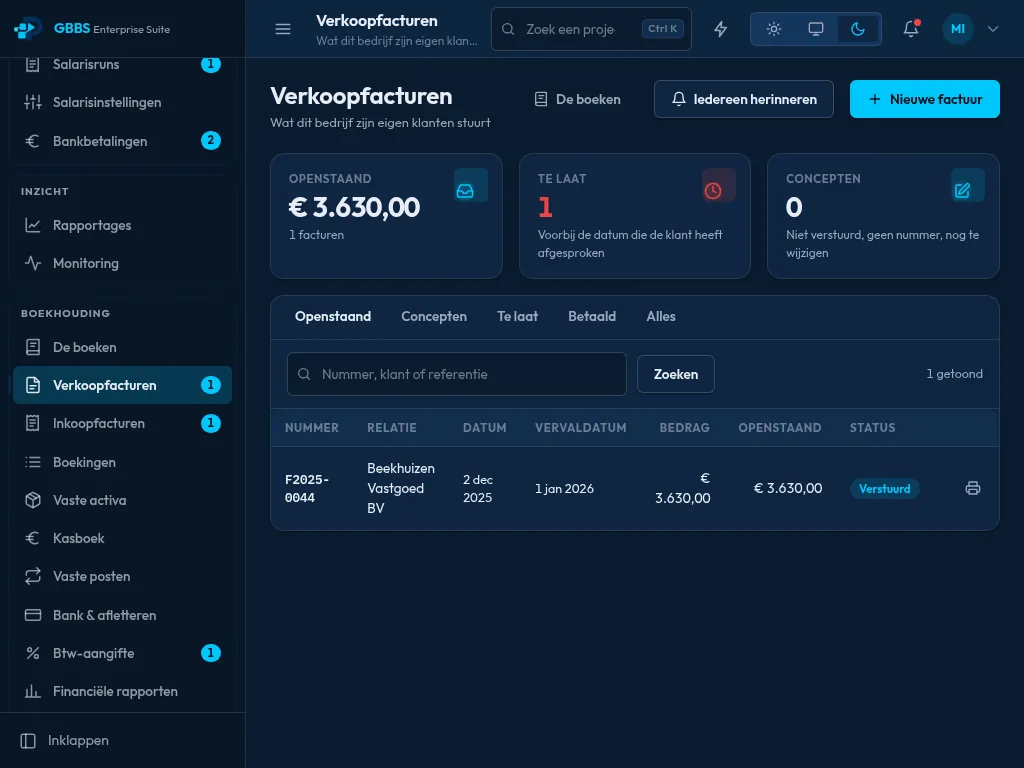
Sales invoices and reminders

Outstanding, overdue and draft invoices are counted at the top, with tabs for each state. One button sends a reminder to every customer who is late.

How it works

Invoices start as drafts with a working title. The legal number is allocated only at the moment the invoice is sent, from one unbroken series, and from then on the invoice can no longer be edited. The counts and tabs are queries over invoice status and due date. The reminder button selects every overdue invoice, sends an e-mail through the company's configured mail server and records what was sent. Sending an invoice posts it to the double-entry books automatically, so the debtors figure follows without retyping.

Purchase invoices and payment batches
PES web app

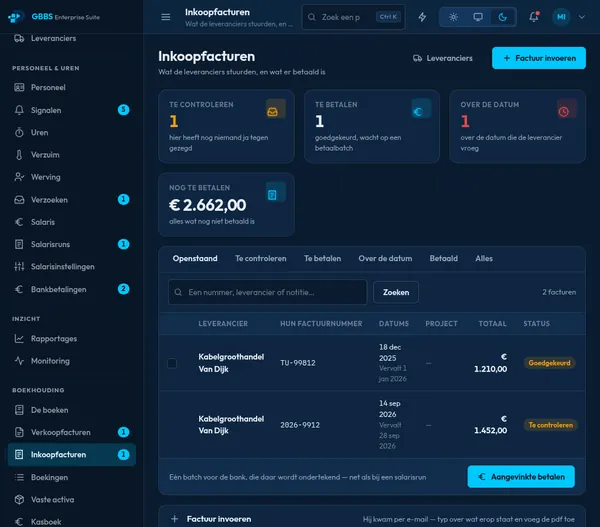
Purchase invoices and payment batches

Supplier invoices are entered with their PDF, checked, approved and paid in a single bank batch. Counters show what needs checking, what is due and what is overdue.

How it works

A supplier invoice is entered with its scanned PDF attached, then moves through checked, approved and paid states, each step recorded with the person who took it. Approval creates the ledger posting, so the books reflect the liability straight away. Approved invoices can be collected into a single payment batch and exported as a SEPA credit transfer file for internet banking, or sent to a bank's payment-initiation interface, where a person authorises the payment at the bank. Due and overdue counters are calculated from the payment terms.

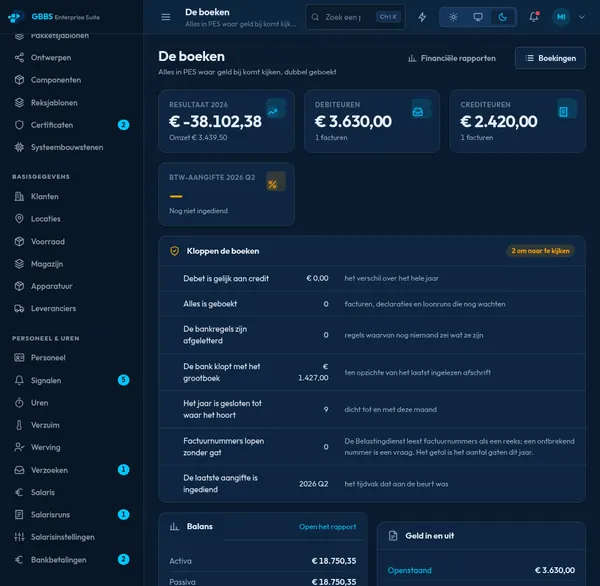
Double-entry books at a glance
PES web app

Double-entry books at a glance

Result, debtors, creditors and VAT status sit above a set of checks on the ledger. The latest postings show where each entry came from, such as payroll, depreciation or a purchase invoice.

How it works

The books are a double-entry ledger in PostgreSQL. Every figure on this page is a sum over posted lines, calculated when the page is requested, so a stored total can never disagree with the entries behind it. Other modules post automatically, for example payroll, depreciation of fixed assets or an approved purchase invoice, and each posting keeps a reference to its source. The checks above the list test the ledger itself, such as whether debit equals credit. Correcting a source document rebooks it rather than leaving an orphaned entry.

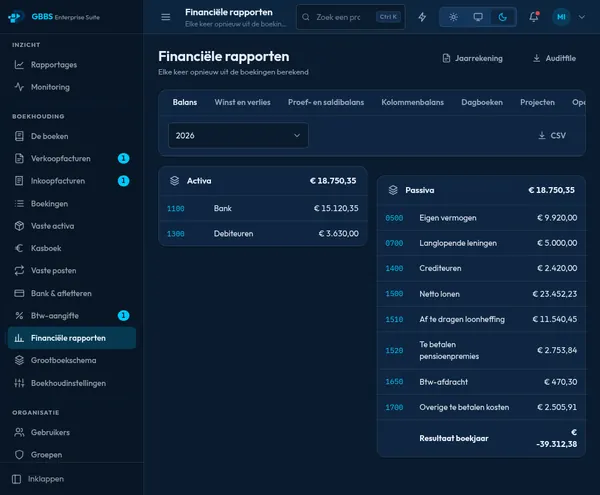
Financial reports on demand
PES web app

Financial reports on demand

Balance sheet, profit and loss, trial balance and day books are calculated from the postings each time. Reports export to CSV, and an annual accounts and audit file are one click away.

How it works

Reports never write anything. The balance sheet, profit and loss, trial balance and day books are queries over the posted ledger lines for the chosen period, so they are always current and any figure can be traced to its entries. Results can be downloaded as CSV, and spreadsheet exports use the suite's house layout. The annual accounts are produced as a PDF, and the audit file is a standard XML file that an accountant or the tax authority's tools can read. Reading reports needs its own permission.

06

Stock & equipment 2 screens

Know what is in the stockroom and when each ladder or meter needs its next inspection.

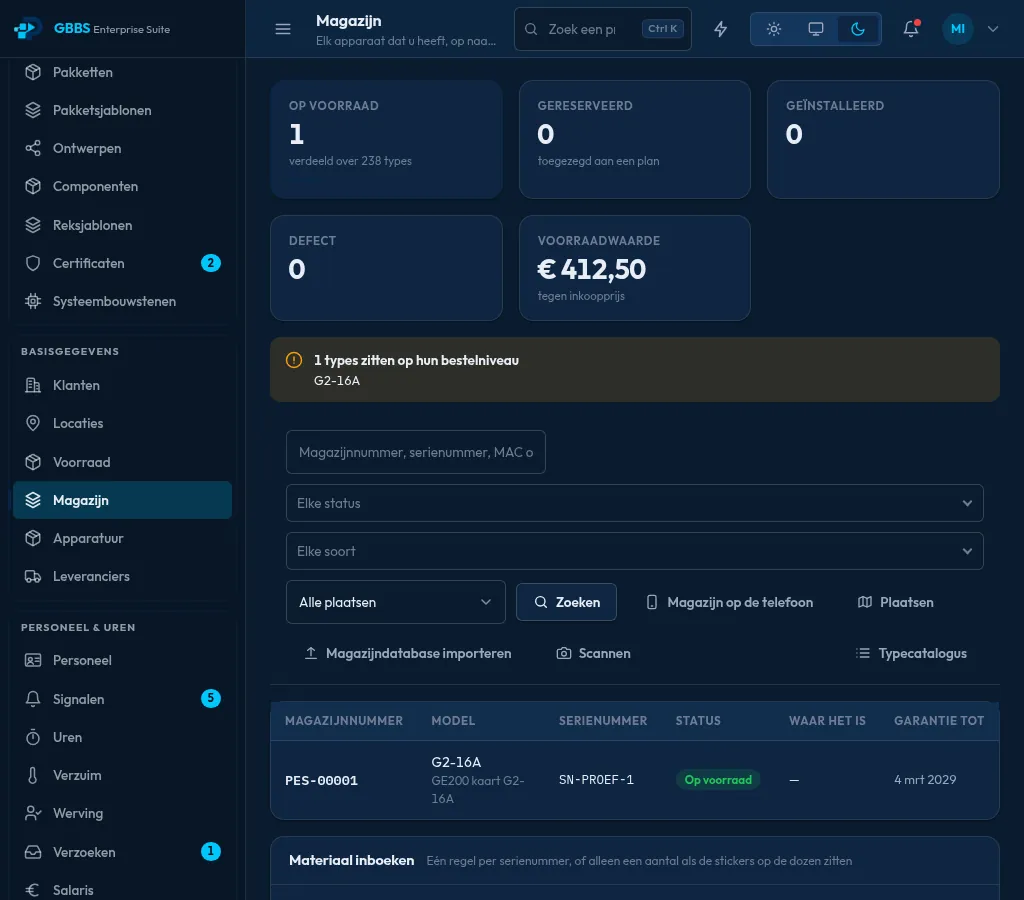
Stockroom with reorder alerts
Highlight PES web app

Stockroom with reorder alerts

Stock, reserved, installed and defective counts sit next to the inventory value. Items at their reorder level are flagged, and serial numbers are tracked from goods-in.

How it works

Two things are counted separately. Bulk items such as cable glands are quantities, while items with an identity, such as an intercom station with a serial number, are individual units of a catalogued model. The model holds what is true of every unit and the unit holds only its serial, place and state, so stored, reserved, installed and defective are counted from unit states. Inventory value is calculated from purchase prices. An item at or below its reorder level is flagged, and goods-in creates the units with their serial numbers.

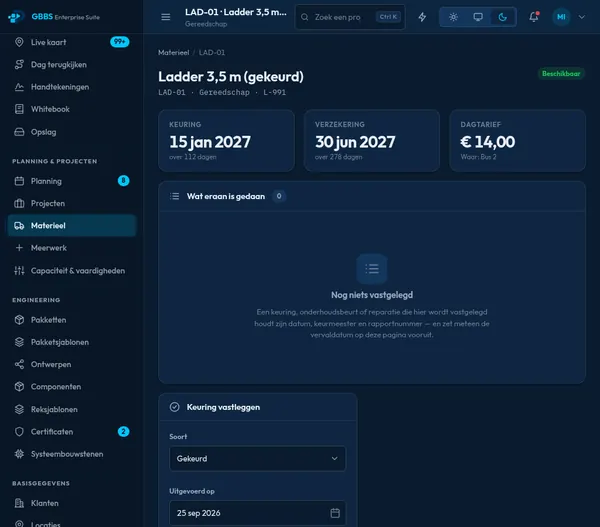
Tools with inspection dates
PES web app

Tools with inspection dates

A tool page shows the next inspection, insurance expiry and day rate. Inspections and repairs are logged with their cost, and reservations against work orders are listed.

How it works

A tool is a record with its own inspection interval, insurance expiry and day rate. Inspections and repairs are logged as entries with their cost, and the next inspection date is calculated from the last logged one. Reservations are rows linking the tool to a work order and dates, so two jobs cannot silently claim the same ladder. The daily background job that watches expiry dates can warn by e-mail and inside the suite, and the day rate feeds project cost figures.

07

Chat, vault & assistant 3 screens

Talk and share secrets safely, and ask the assistant about your own company data.

End-to-end encrypted chat
Highlight PES web app

End-to-end encrypted chat

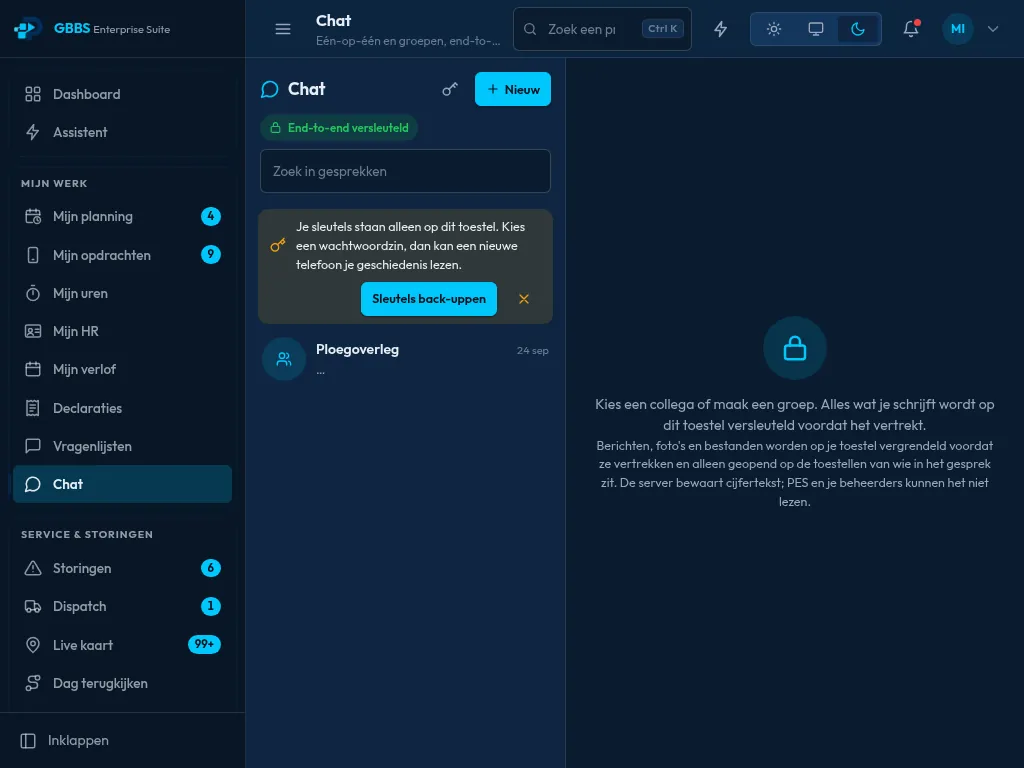
Messages, photos and files are encrypted on the device before they leave it. The server stores only ciphertext, and a passphrase backup lets a new phone read the history.

How it works

Encryption uses Olm for one-to-one conversations and Megolm for groups, the same ratchet designs used by Signal and Matrix, implemented by an audited open-source library that runs in the browser as WebAssembly. There is no Matrix server: PES only stores and forwards ciphertext, so administrators and the operator cannot read messages. Keys live on the device. The optional passphrase backup stores keys encrypted with a key derived from the passphrase, which is how a new phone can read the history. Attachments are encrypted on the device before upload.

Password vault with health check
PES web app

Password vault with health check

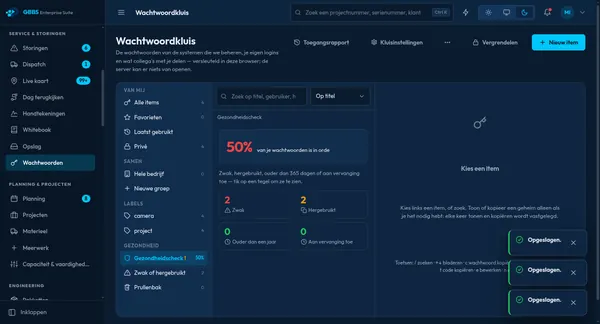
Passwords for managed systems are encrypted in the browser, and the server cannot open them. Items are sorted by group and label, and a health check counts weak, reused and outdated entries.

How it works

The vault is zero-knowledge. Each user has a key derived from a passphrase with PBKDF2 and a P-256 key pair, and every item has its own random key with the content sealed as AES-GCM in the browser before it is sent. The server stores ciphertext and wrapped keys and can list, count and share, but cannot open anything. The health check therefore runs in the browser after decryption, counting weak, reused and old passwords locally. Sharing wraps an item's key for a collection, and the company can hold a recovery key.

Assistant that knows the company
PES web app

Assistant that knows the company

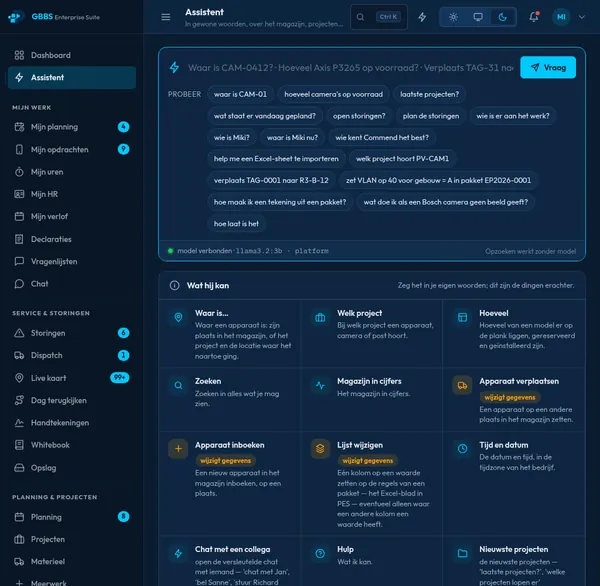
Staff ask in plain words where a device is, what is planned today or who knows a system. Example questions and a list of abilities show what it can look up and which actions change data.

How it works

The assistant is a set of actions, not a free-running model. Questions such as where a device is, what is planned today or who knows a system are answered by database queries that respect the asker's permissions. Actions that change data are labelled and need confirmation. A language model is optional: the company can connect any OpenAI-compatible endpoint, including a local one such as Ollama on its own hardware, and everything works without it. Answers run in the background so long generations do not time out.

08

Administration 4 screens

One dashboard for the company, monitoring of the operation and control over who may do what.

One dashboard for the company
Highlight PES web app

One dashboard for the company

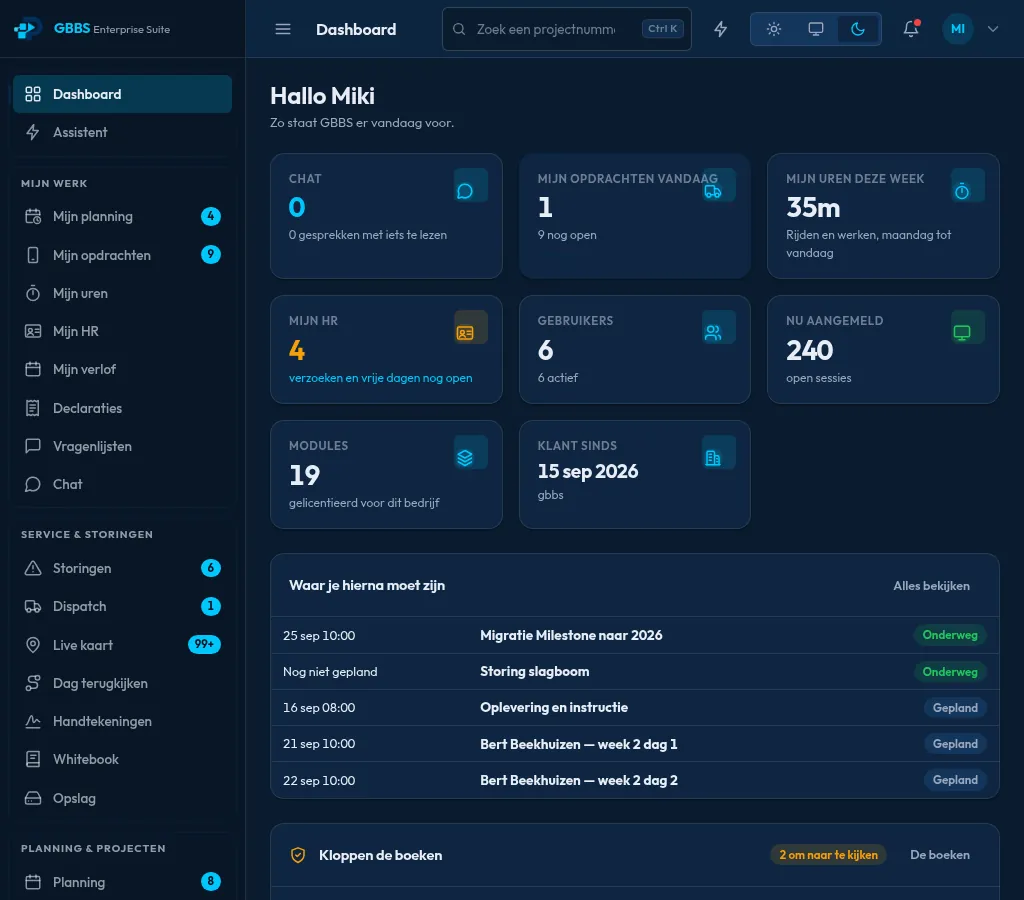
The start page gathers open work, upcoming deadlines, the state of the books and the payroll run in one view. Tiles link straight to the screens behind them, and the modules list shows what is licensed for the company.

How it works

The start page is rendered on the server from live queries against the company's own PostgreSQL data, so every tile is a current count rather than a cached report. Each tile is a plain link to the screen that holds the underlying records. What a person sees depends on two things: the modules the company has licensed, and the permissions of the signed-in user, so unlicensed areas and screens the user may not open are simply left out. Tenant isolation is enforced by row-level security in the database itself, which means the dashboard of one company can never include another company's rows.

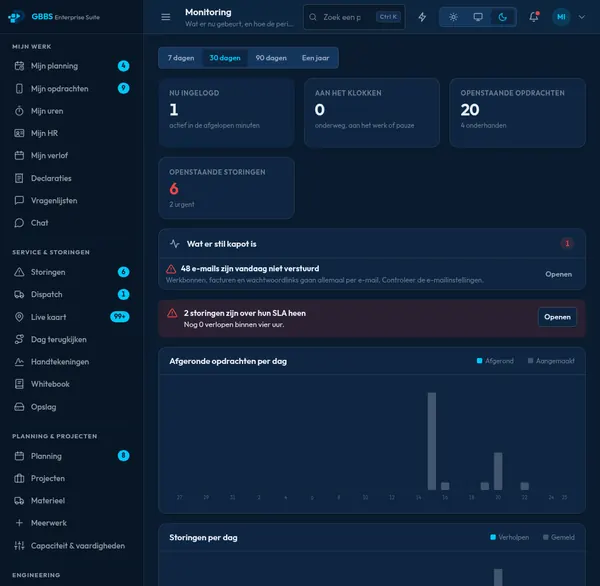
Monitoring of the whole operation
PES web app

Monitoring of the whole operation

Charts show completed jobs, faults, clocked hours and PES usage per day. Warnings such as failed e-mail delivery or breached SLAs appear at the top.

How it works

The charts are aggregated on the server from the same operational tables the rest of the suite uses: finished jobs, faults, clocked hours and sign-in activity per day. The warnings come from health checks such as failed e-mail delivery and breached service levels. For infrastructure monitoring, PES also exposes a text metrics endpoint in the Prometheus format, which Grafana, Zabbix or Uptime Kuma can scrape. Operators can additionally be alerted by e-mail and Telegram when a new error or a security event occurs.

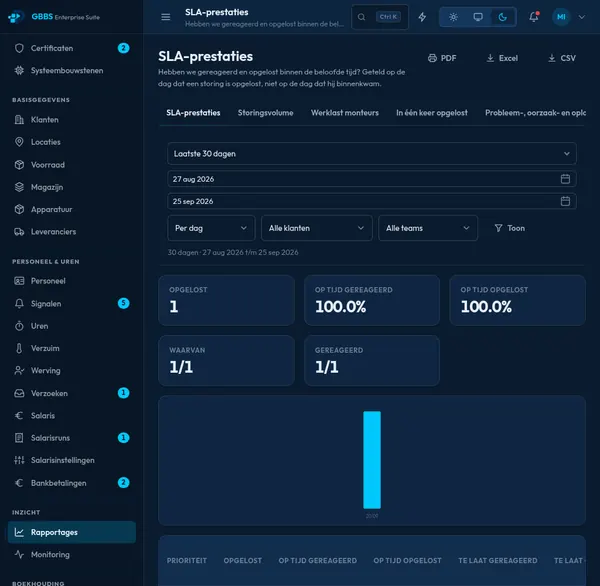
SLA reports sent automatically
PES web app

SLA reports sent automatically

Response and resolution performance is reported per priority, customer and team. Reports export as PDF, Excel or CSV and can be e-mailed on a weekly schedule.

How it works

Each report is a read-only query over faults and their recorded deadlines, grouped by priority, customer and team. Percentages are shown with the counts behind them, such as 47 of 50, so a figure can be defended. The window and filters used are printed on the report. PDF files are drawn on the server, Excel and CSV are generated as files, and the weekly schedule runs as a background job that mails the finished report to the chosen recipients using the company's mail settings.

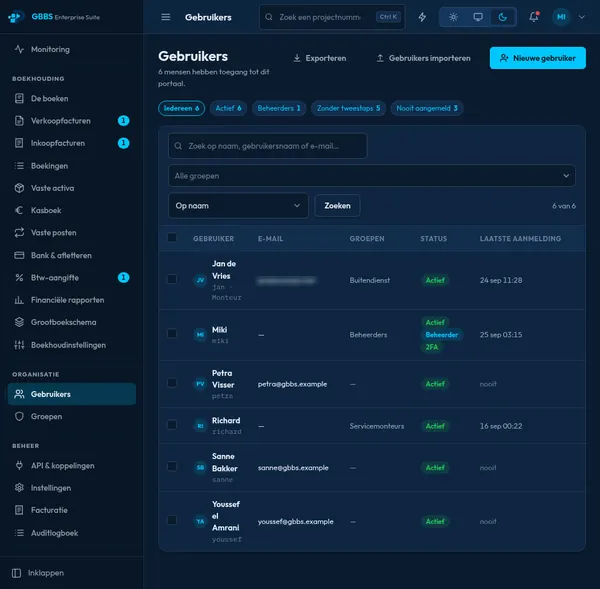
Users, groups and two-step sign-in
PES web app

Users, groups and two-step sign-in

Filters show administrators, accounts without two-step verification and people who never signed in. Users are grouped, searchable and can be imported or exported.

How it works

Passwords are stored as Argon2id hashes and sessions are kept on the server, so an administrator can revoke one. Two-step verification uses standard time-based codes with recovery codes, passkeys use WebAuthn, and a company can require two-step for everyone. Users belong to groups that carry permissions. Accounts can be created in bulk from a spreadsheet, with a generated password sent by e-mail, or synced from Active Directory or LDAP, where people who leave are disabled rather than deleted. Every change is written to the audit trail.

Under the hood

How PotoP Enterprise Suite is built, where it runs and how it keeps your data safe.

01

Plain web application stack

Python 3.12 with FastAPI, server-rendered pages and vanilla JavaScript, so there is no front-end build step. It runs on PostgreSQL 16 behind gunicorn and a reverse proxy, shipped as a Docker image. The same pages serve desktop, tablet and the Android app.

02

Many companies, licensed modules

One installation serves many customer companies, each on its own hostname. Isolation is enforced by PostgreSQL row-level security on every tenant table, so a forgotten filter returns nothing. Modules are licensed per company and shape the menus and permissions.

03

One database, full audit trail

Everything lives in PostgreSQL, and reports are computed from the entries rather than stored totals. Changes to records, permissions and settings are written to an audit trail with the person and time, and invoice numbers, ledger postings and contracts are kept as history.

04

Security built in

Argon2id passwords, time-based two-step codes, WebAuthn passkeys and server-side revocable sessions. A strict content security policy limits scripts to nonce-tagged ones. Chat is end-to-end encrypted and the password vault is zero-knowledge, so the server holds only ciphertext.

05

Local AI, optional

The assistant answers from company data through permission-checked actions. A language model is optional: connect any OpenAI-compatible endpoint, or run Ollama on your own hardware. Nothing needs the internet, and every feature still works with the model switched off.

06

Redundancy and backups

Complete stacks can run in several locations, with one primary and standbys kept current by PostgreSQL streaming replication and file copying. Standbys are read-only until promoted. Whole-platform dumps and per-company exports cover disaster recovery and moving a customer.

07

Link to PotoP VMS Studio

The suite is sold and runs independently, and the video link is one optional integration. A camera system drawn in the designer can be pushed to a VMS server, and faults raised in the VMS can arrive in PES as service calls.

Want to see PotoP Enterprise Suite on your own site?

Tell us about your installation — we are happy to show you around or set up a trial.